

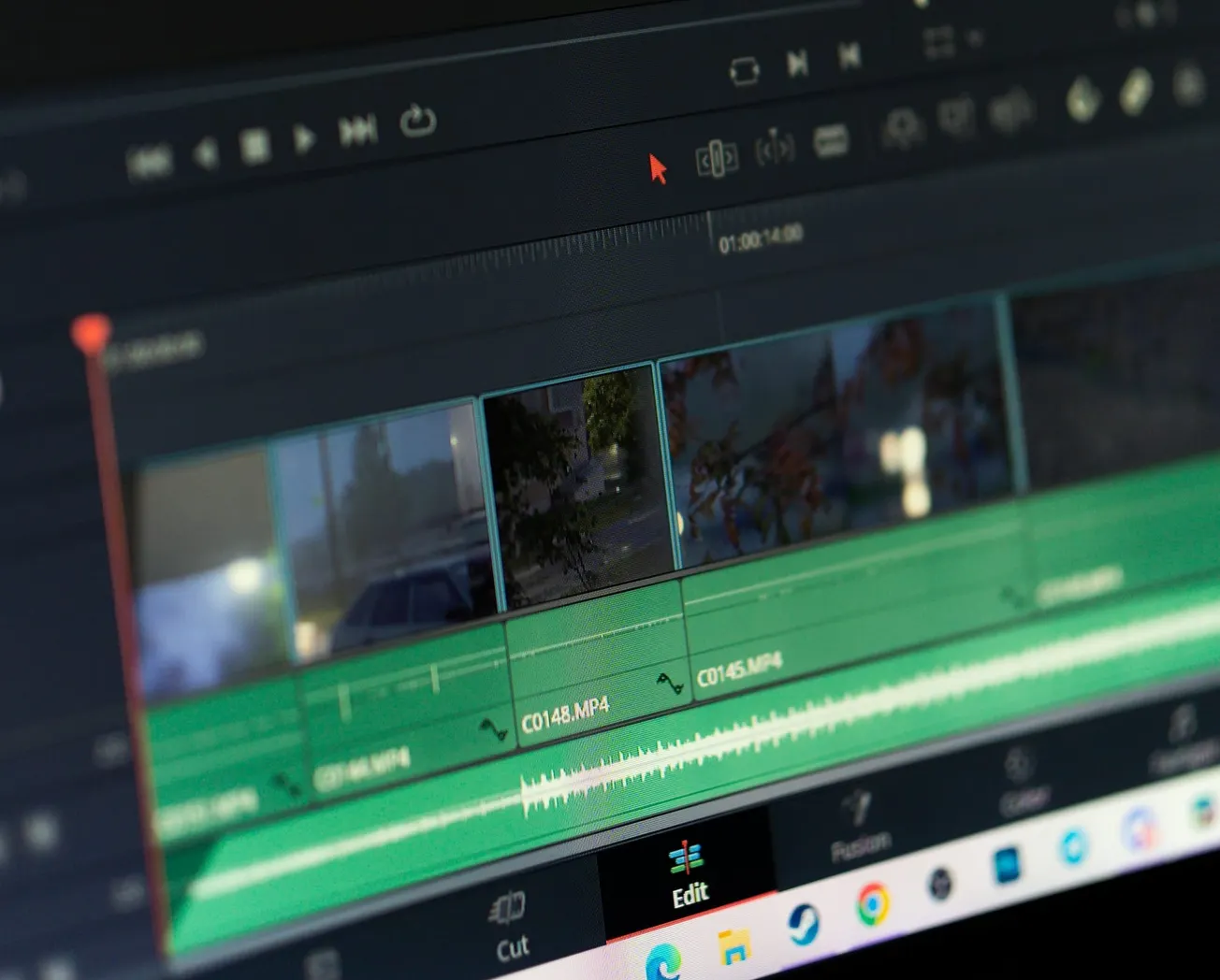
Starting every video project from an empty timeline is a primary source of production friction for busy media teams and video editors. Manually recreating folder structures, importing repetitive brand assets, and dialing in identical audio effects for every single episode wastes valuable creative energy. With the release of Blackmagic Design's DaVinci Resolve 21 Beta 4, editors have access to enhanced organization and keyframing tools, making it the perfect time to build a permanent, high-efficiency non-linear editing template.
The foundation of any successful editing template begins in the Media Pool, and the Beta 4 update introduces powerful bin customization features. Editors should start by establishing a standardized, empty folder hierarchy that separates raw video, external audio, sound effects, B-roll, and brand graphics.
In this latest software version, thumbnail, list, and metadata views can be saved uniquely for each independent bin. This allows you to set your B-roll folder to a highly visual thumbnail grid while keeping your primary interview tracks in a detailed list view sorted by custom metadata tags.
Building out the master timeline structure within your template project is the next critical step. Pre-configure your timeline with dedicated audio and video tracks that are already labeled and color-coded based on their function, such as A-Roll, B-Roll, Titles, GFX, Dialogue, Sound Effects, and Background Music.
Take advantage of the Edit page improvements in Beta 4, which automatically plays mono audio sources across both the left and right channels of stereo tracks, ensuring that standard microphone voiceovers sound correct instantly upon import without manual channel routing.
Finally, integrate your recurring brand assets directly into the template timeline before saving. Drop in your standard lower thirds, transition stinger animations, and default intro or outro cards, leveraging the newly added native support for Lottie animations and OGraf HTML graphics to keep your project lightweight.
Once your folder structures, track layouts, and brand assets are perfectly arranged, navigate to the File menu and save the project as a dedicated Project Template. Creators looking to fully optimize their hardware environments to support these advanced software capabilities can explore the system configuration breakdowns featured on PodcastVideos.com.


